Hardware And GPU Configuration
OnVerisNode runs AI models on a GPU where it can, and on the CPU otherwise. GPU inference is many times faster, and is recommended for any production deployment. This page explains how a model uses the hardware, and the settings you can use to make the most of it.
How A Model Uses The GPU
When a model starts, llama.cpp places as much of it as will fit in GPU memory (VRAM), and keeps the rest in system memory, where the CPU works on it. A model that fits entirely in VRAM is fastest. One that is partly on the CPU still works, but more slowly. With no GPU at all, everything runs on the CPU.
Before you start a model, its settings show whether it will fit, and what llama.cpp would move off the GPU if it does not. See Executor Settings.
How Much Memory Do I Need?
Memory needs depend on the model's size, its quantisation, and its context window. As a rough guide for the model itself:
| Model size | Q4_K_M | Q8_0 |
|---|---|---|
| 3B parameters | ~2 GB | ~3 GB |
| 7–9B parameters | ~5 GB | ~9 GB |
| 13–14B parameters | ~8 GB | ~15 GB |
| 27–32B parameters | ~18 GB | ~32 GB |
| 70B parameters | ~40 GB | ~70 GB |
The context window needs memory on top of this, and a lot of it for long windows. To fit a longer window in the same memory, store the KV cache at lower precision — see KV Cache in Executor Settings.
When a model is first found, OnVeris chooses a context window from the machine's system memory: 4,096 tokens up to 8 GB, 8,192 up to 16 GB, 16,384 up to 32 GB, and 32,768 above that. You can raise it in the model's settings.
Backends
A backend is a build of llama.cpp for a particular kind of hardware. Each language model uses one, chosen in its settings under Compute Backend. The backends available depend on the Node's platform:
| Platform | Backends |
|---|---|
| Windows and Linux (x64) | Vulkan (default), CUDA 13, CUDA 12, ROCm, CPU |
| Windows and Linux (ARM64) | ARM64 (CPU only) |
| macOS (Apple silicon) | Metal |
Which Backend To Use
| Backend | Use it when |
|---|---|
| Vulkan | A safe default. Works on most NVIDIA, AMD and Intel GPUs with their standard drivers |
| CUDA 13 / CUDA 12 | You have an NVIDIA GPU. Usually the fastest choice there. Needs only the NVIDIA driver — CUDA itself is included. Use CUDA 12 if your driver is too old for CUDA 13 |
| ROCm | You have an AMD GPU. On Windows, needs only the AMD driver. On Linux, needs ROCm 7.x installed on the machine |
| CPU | There is no usable GPU |
Installing And Updating Backends
Backends are not installed automatically. In the Node's Executors panel, click the chip icon (Manage llama backends) to open Backends.
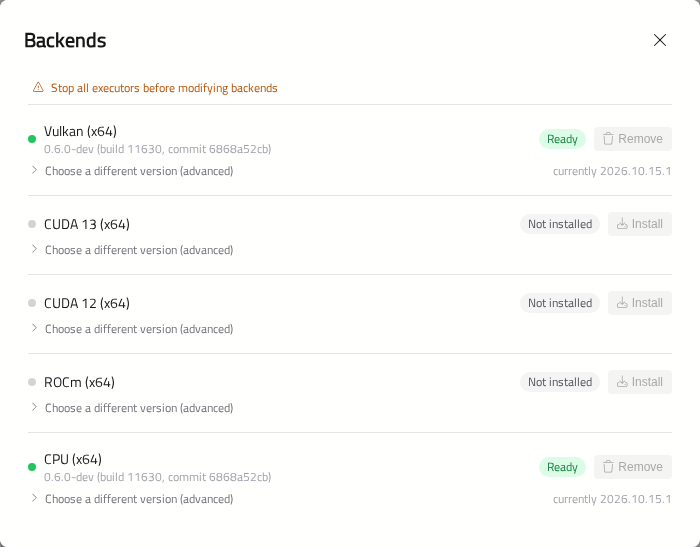
Each backend shows its installed version and status, with buttons to Install, Update, Retry or Remove it. After downloading, each backend will be tested on the machine before it is marked Ready.
Note
Stop all of the Node's language models before changing backends. Until you do, the buttons are disabled.
Choose a different version (advanced) lists earlier versions. You can install one to roll back — for example, if an update causes a problem with a model. Only one version of each backend is kept.
Backends are downloaded from Parker Software over the internet. The Node machine needs internet access to install or update them.
Requests At Once
Requests at Once, in a model's settings, sets how many requests the model answers at the same time.
- Automatic — llama.cpp answers up to four at once, sharing one context window between them. Two long conversations at the same moment can run out of room, and both will fail.
- 1 to 4 — each request gets the model's full context window. The model is loaded with that many windows' worth of memory, so 4 needs four times the context memory of 1. Requests beyond the number will wait their turn.
If people report occasional "context exceeded" failures at busy times, set a number rather than Automatic.
Sharing A Model Across GPUs
When a machine has several GPUs, one copy of a model can be split across them, so that a model too large for one GPU fits. You can set this with Tensor Split in the model's settings.
Choose a preset — Equal, By Total VRAM, By Free VRAM, or All on one device — or drag the bar. Exclude keeps a device out of the split. Reset to auto (clear split) lets llama.cpp decide.
Running A Model As Several Instances
On a machine with two or more GPUs, a model can instead run as several instances — separate copies, each on its own GPU. Each instance answers its own requests at full speed, so more people are served at once.
Tensor Split and instances solve different problems. Tensor Split spreads one copy of the model across GPUs: use it when the model is too big for one GPU. Instances run one copy per GPU: use them when the model fits on one GPU, and you need more requests at once.
To set it up, in the model's settings:
- Set Instances to the number of copies — at most one per GPU, and up to 8.
- For each instance, choose its GPU. One per GPU does this for you.
- You can optionally set Requests at Once — it then applies to each instance. Starting each instance with 1 is a good default.
- Click Save.
Instances start one after another. Saving will restart all of them. The memory estimate shows each instance separately.
Everything else in OnVeris sees one model. When a request arrives, the Node gives it to the least busy instance, preferring one that has recently worked on the same conversation, so it can reuse what it already read. When every instance is busy, requests will wait, and OnVeris Chat will say Waiting for model….
In the Executors panel, a model with instances has a summary line beneath it, such as 2 instances · 1 running · idle. Click it to see each instance: its GPU, its speed, and whether it is idle or busy. If one stops, click Restart beside it — the others will keep serving.
Note
An instance whose model does not fit on its GPU still starts, but runs partly on the CPU and is much slower. Check the memory estimate for each instance, and its speed in the instances list.
CPU-Only Inference
With no GPU — or with the CPU backend — the model runs entirely on the CPU, in system memory. This works, but expect answers to come much more slowly. Make sure the machine has enough memory for the model and its context window.
Monitoring Hardware
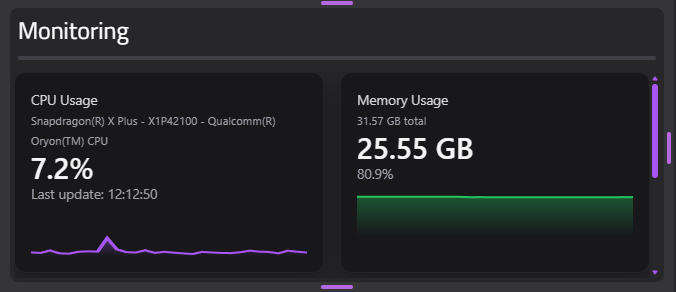
Live CPU, memory, GPU and VRAM figures are shown in the Monitoring panel of each Node's detail view in the Gateway.