OnVeris Chat Overview
OnVeris Chat is the app you use to talk to your organisation's AI. It connects to your OnVeris server, so your conversations stay on your organisation's own hardware.
You can use the same app in four places:
| Where | How you get it |
|---|---|
| Web browser | Go to your OnVeris address and add /chat — nothing to install |
| Windows, macOS and Linux | A desktop app |
| iPhone and iPad | An app for iOS |
| Android | An app for Android phones and tablets |
Your conversations are stored on the OnVeris server, not on your device. You can sign in anywhere and they will all be there. See Getting the App to install it.
What You Can Do
With OnVeris Chat you can:
- Chat with an Assistant or a model. Assistants are set up by your administrator for particular jobs. They may have their own instructions, tools and documents to draw on.
- Attach documents and images for the AI to read. See Attachments and Images.
- Let the AI use tools, such as looking something up in another system. You stay in control, because some tools ask your permission first. See Using Tools.
- Organise your conversations into groups, and search them. See Managing Conversations.
- See how much the AI can remember in the current conversation. See Context Window.
The Window At A Glance
The OnVeris Chat window has three areas: the sidebar, the conversation, and the cards on the right.
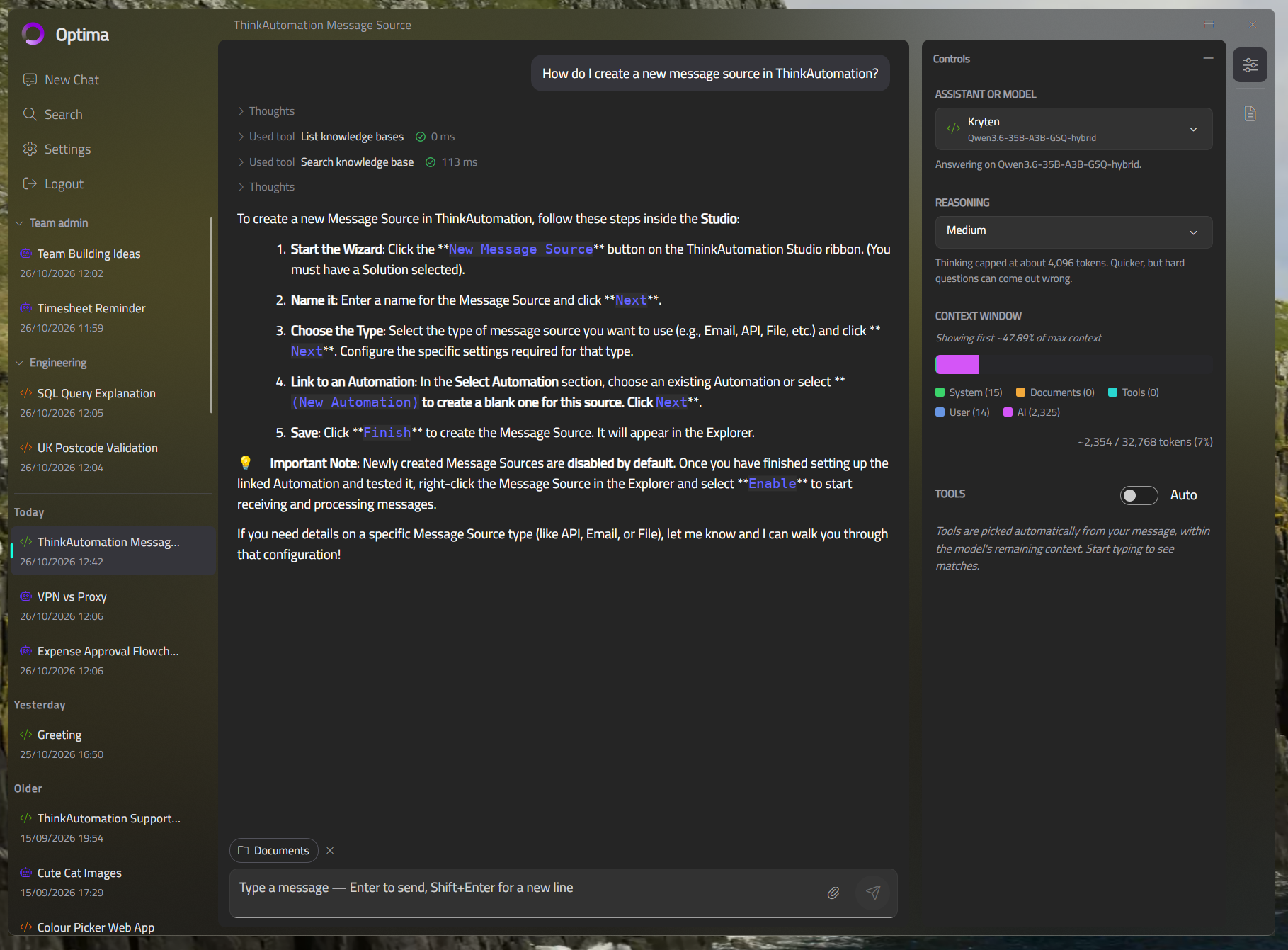
Sidebar (left) — New Chat, Search, Settings and Logout, then your conversations. You can click the OnVeris logo at the top to collapse the sidebar to a narrow strip.
Conversation (centre) — the messages, and the message box at the bottom.
Controls and Documents (right) — two cards, opened from the icons down the right-hand edge. Controls shows what you are chatting with, how much of the context window is in use, and any Agents and tools. Documents lists the documents you have sent in this conversation. See Controls Panel.
On A Phone Or A Narrow Window
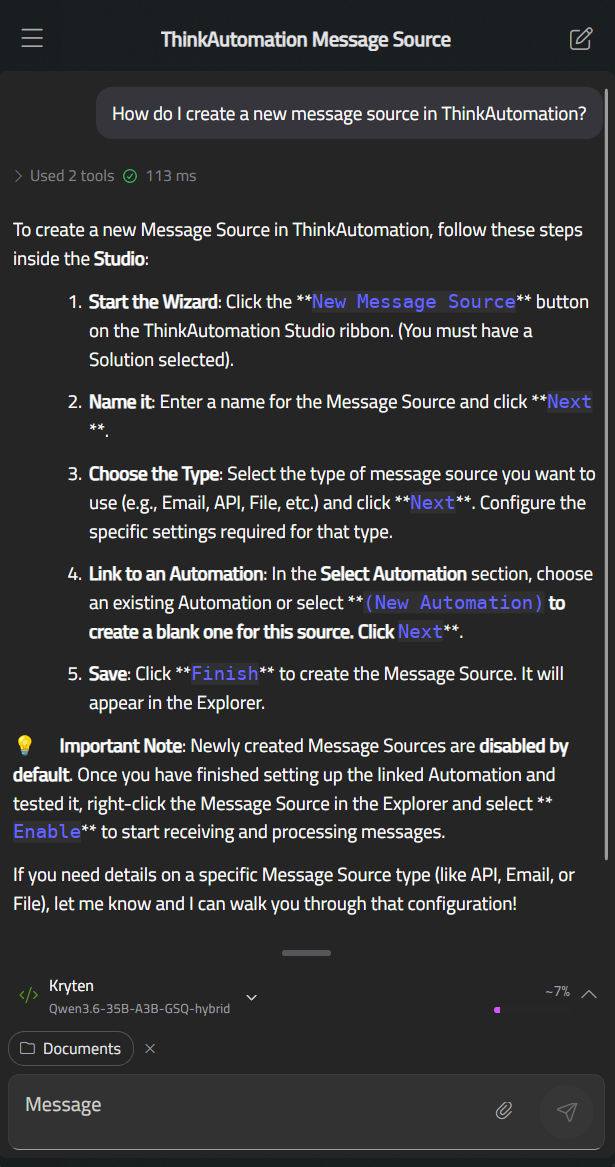
When the window is narrow — on a phone, or a desktop window dragged small — the layout will change to fit:
- The sidebar becomes a drawer. Tap the menu button at the top left to open it.
- A slim bar sits just above the message box, showing what you are chatting with and how full the context window is. Drag it up to reveal the Controls and Documents tabs.
- A pen button at the top right starts a new chat.
What Differs Between Platforms
Most of OnVeris Chat is the same everywhere. A few features need things that only some devices have:
| Feature | Desktop | Phone and tablet | Web browser |
|---|---|---|---|
| Chatting, attachments, groups, search | Yes | Yes | Yes |
| Agents and tools that run on the server | Yes | Yes | Yes |
| Automatic tool choice (Auto in the Tools section) | Yes | Yes | No — All or Manual instead |
| Searching conversations by meaning, not only by title | Yes | Yes | No — title search only |
| Showing web pages beside the chat | Yes | Yes | No |
| Tools that run on your own computer, and Workspaces | Yes | No | No |
| Photo library and camera | No | iPhone and iPad | No |
What Happens When You Send A Message
Every message you send follows the same path:
- Your message will be sent to the OnVeris server.
- The server will pass it to an AI model — the one you chose, or the one your Assistant uses.
- The answer will appear on screen as it is written.
- If the AI decides to use a tool, you will see the tool call in the conversation before the answer carries on.
- The conversation will be saved automatically.