Managing Conversations
OnVeris Chat saves your conversations automatically. This page explains how to find, organise and remove them.
The Conversation List
The sidebar lists your conversations below the menu. Your groups come first, then everything else, newest first, under headings such as Today, Yesterday and Older. As you scroll down, older conversations will keep loading.
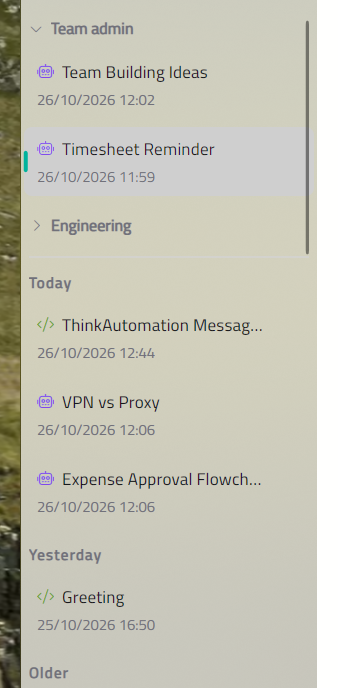
Click a conversation to open it and carry on where you left off.
Groups
Groups keep related conversations together — for example, one for each project or client. A conversation can be in one group at a time.
Creating A Group
You can create a group in either of two ways:
- On the welcome screen, click + beside GROUPS.
- Open a conversation's … menu and choose Move to group → New group….
Type a name and click Create.
Filing Conversations
You can put a conversation in a group when you start it, or at any time afterwards:
- A new conversation — on the welcome screen, click a group before you send your first message. Click it again to change your mind.
- An existing conversation — open its … menu, choose Move to group, and pick a group. Choose Remove from group to take it out again.
To start a new chat straight into a group, click the + beside the group's name in the sidebar.
Working With A Group
Each group in the sidebar shows its newest conversations. Click Show more to see the rest, and click the arrow beside the name to collapse or expand it.
The group's … menu has the following options:
| Option | What it does |
|---|---|
| Rename… | Give the group a new name |
| Move up / Move down | Change the order of your groups |
| Delete… | Delete the group. Its conversations are kept and will move back to the main list |
Renaming A Conversation
Each conversation is given a title automatically from your first message. To change it, open the conversation's … menu, choose Rename, type the new title and press Enter.
Note
On a computer, the … button appears when you point at a conversation. On a phone or tablet it is always shown.
Deleting A Conversation
Open the conversation's … menu, choose Delete, then confirm. Deleting is permanent: the conversation and anything attached to it cannot be recovered.
To delete every conversation you have, open Settings → General and click Delete all conversations…. They will be removed on all your devices.
Searching
Click Search in the sidebar, or press Ctrl+F, and type what you are looking for. Use the arrow keys and Enter to open a result, or press Esc to close the search.
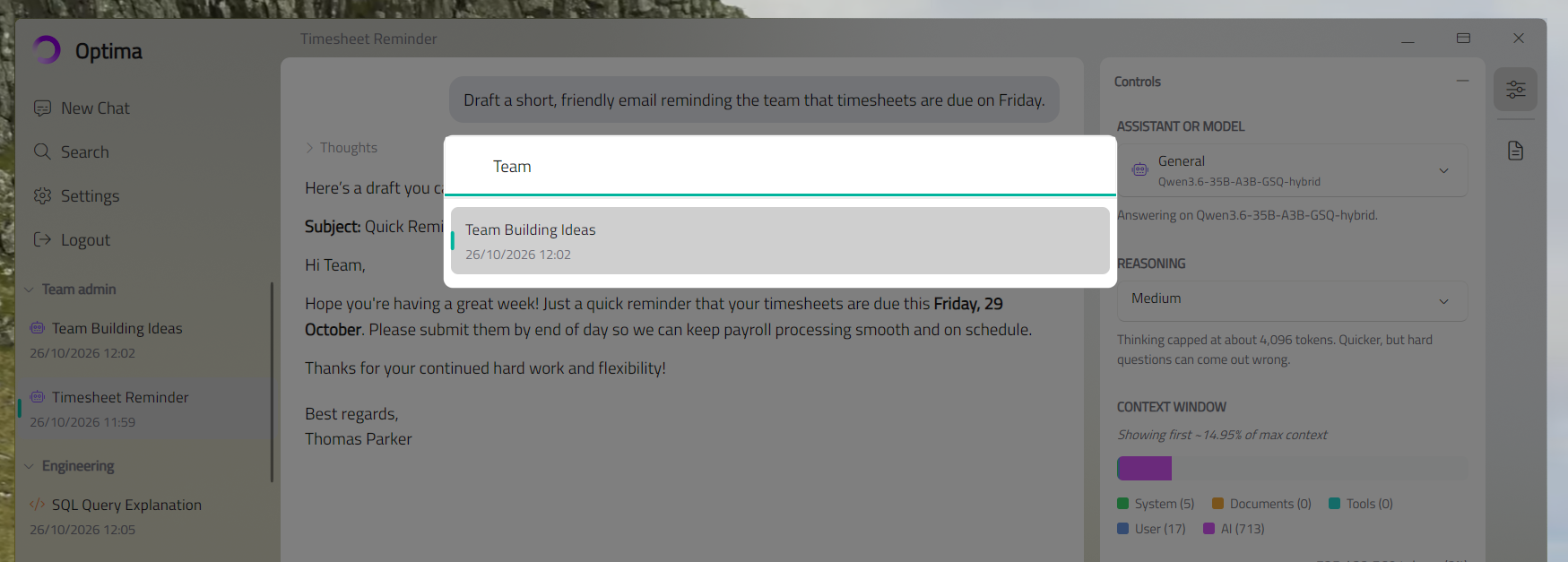
Search looks for your words in conversation titles. In the desktop and mobile apps, with the embedding model installed, it also finds conversations about the same thing in other words. For example, searching for holiday can find a conversation titled Annual leave request. Results that match your exact words will be listed first.
Where Conversations Are Kept
Conversations are stored on your OnVeris server, not on your device. This means:
- They are the same on every device you sign in on.
- Clearing your browser data or removing the app will not delete them.
- They belong to your account. Other users cannot see them.