Using Tools
Tools let the AI do more than write text. With tools it can look things up, fetch data from another system, read and change files, or hand work to another Assistant — and use what it finds in its answer.
Your administrator decides which tools exist and who can use them. If you have none, you will not see any of this.
Watching The AI Use A Tool
When the AI decides a tool would help, the call will appear in the conversation, followed by the rest of the answer.
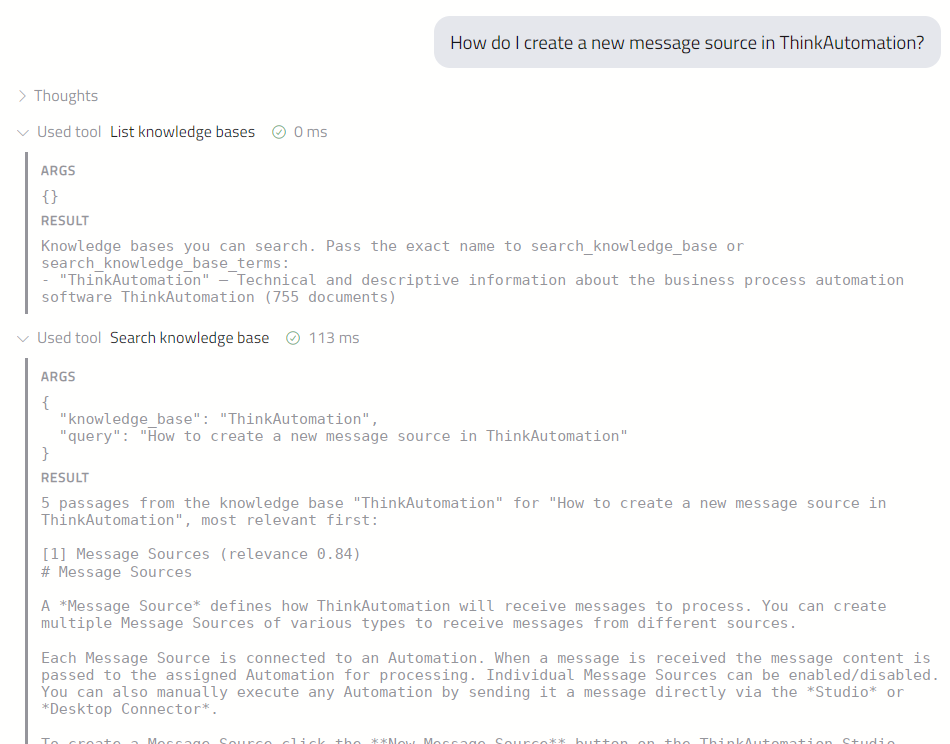
Each call is one row. While the AI is still writing out what to send, the row will say Preparing tool. Once the tool runs, the row will show the tool's name and where it comes from, then a tick or a cross and how long it took.
Click a row to see what was sent to the tool (ARGS) and what came back (RESULT).
The AI may call several tools for one answer, or the same tool more than once. On a phone, a run of tool calls will fold into a single row such as Used 3 tools. Tap it to see them.
To stop the AI part-way through, click stop or press Esc.
When A Tool Asks Your Permission
Your administrator can set some tools to ask before they run. When the AI wants to use one, the conversation will pause and show what the tool would be sent.
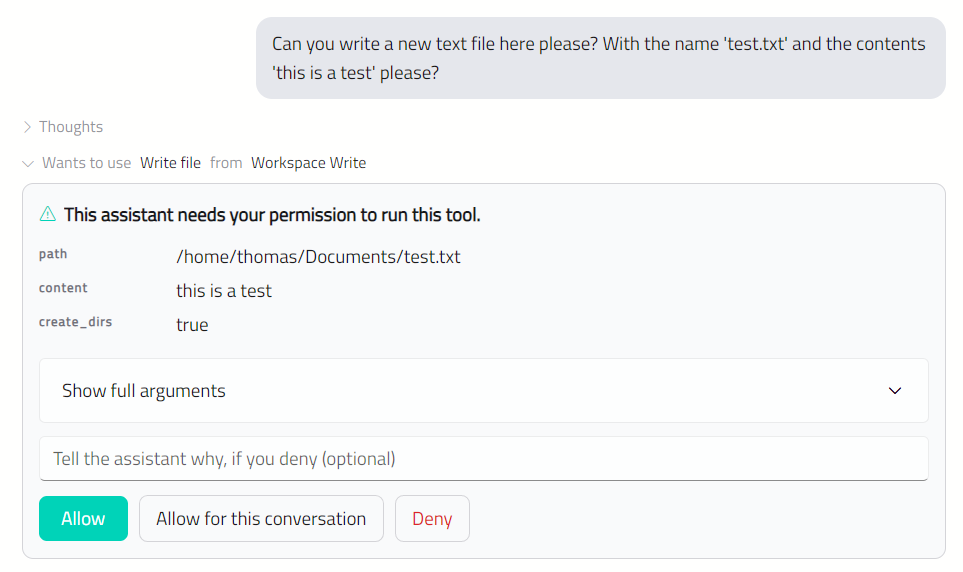
| Button | What happens |
|---|---|
| Allow | The tool will run this once. You will be asked again next time |
| Allow for this conversation | The tool will run, and will not ask again in this conversation |
| Deny | The tool will not run. The AI will be told, and will carry on without it |
If you deny, you can type a reason in the box first — for example, "use the test system instead". The AI will read it.
The row will then record your decision, such as Allowed by you or Denied by you.
When A Tool Needs You To Sign In
Some tools act as you in another system. If your connection to that system has lapsed, the conversation will pause with a card saying the service needs you to sign in again.
Click Sign in. A browser page will open where you sign in to the other system. When you are done, the conversation will carry on by itself.
Click Don't sign in to let the AI carry on without that tool.
Agents
An Agent is another Assistant that the one you are chatting with can hand a task to. The Agent works on the task by itself, with its own tools, and sends back a report. You will see one row for the whole job:
- Wants to run agent — waiting for your permission, if this Agent asks first
- Running agent — at work, with a count of its steps
- Ran agent — finished
Click the row to see the TASK it was given, the STEPS it took, and its REPORT.
When an Agent asks permission, the prompt explains that it will be able to use its own tools without asking you again. Allowing the Agent allows everything it does for that task.
You can switch Agents off for a conversation in the Controls card. See Controls Panel.
Web Pages Beside The Chat
Some Assistants can show you a web page. It will open in a pane beside the conversation, and a card in the conversation lets you open it again later.
The pane has Reload, Open in your browser and Close buttons. If a page cannot be shown inside the app, click Open in your browser.
Note
Web pages beside the chat are not available in the web browser version of OnVeris Chat.
Pictures From Tools
When a tool returns an image, such as a chart or a picture of a page, it will be shown under the tool's row. Click it to see it full size.
Tools That Run On Your Own Computer
In the desktop app, some tools run on your computer rather than on the OnVeris server — for example, tools that read and write files or run commands. These need the Connector runtime, which you can install from Settings → Connectors.
Your Workspace
A Workspace is the folder a conversation works in. Tools that work with files start there, and will ask before touching anything outside it.
The Workspace is shown on a chip in the message box. Click it to choose a different folder for this conversation, or click × to clear it.

New conversations start in your default Workspace — your Documents folder, unless you change it in Settings → General → Default workspace.
When a tool wants a file or folder outside the Workspace, the conversation will pause and ask. Click Allow once to let it through this time, or Deny.
Note
A Workspace is a safeguard, not a lock. It covers the tools that say which files they use. A tool that runs commands could still reach elsewhere, which is why such tools usually ask permission first.
Read Before Write
To stop a tool overwriting a file the AI has not looked at, OnVeris will not let a tool change an existing file unless the AI has read it first in this conversation, and the file has not changed since. When this happens, the AI will be told to read the file and try again.
Tool Activity
Settings → Tool activity keeps a record of every tool call this computer has seen — what was sent, what came back, and any decision you made. See Settings and Shortcuts.