Context Window
Every AI model has a context window — a limit on how much it can hold in its working memory at once. Everything the model reads for your next answer has to fit: the Assistant's instructions, the tools on offer, any documents, and the conversation so far.
Sizes are measured in tokens. A token is a piece of a word. As a rough guide, 1,000 tokens is about 750 words of English.
Seeing How Full It Is
The Context window section of the Controls card shows how much of the window the conversation is using. On a phone, the slim bar above the message box shows the same thing in miniature, with a percentage.
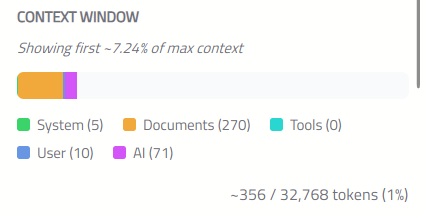
The bar is divided by colour:
| Segment | What it is |
|---|---|
| System | The Assistant's instructions, and anything else OnVeris tells the model at the start |
| Documents | Documents attached to messages still in view |
| Images | Images attached to messages still in view |
| Tools | The descriptions of the tools on offer |
| User | Your messages |
| AI | The AI's answers, including any tool results it used |
Below the bar is the total — for example, 12,400 / 32,768 tokens (38%). A ~ in front means the figure is an estimate.
When only a small part of the window is in use, the bar will zoom in so the segments are easier to see, and will say Showing first ~x% of max context.
When The Conversation Gets Long
At about 80% full, a note above the message box will warn that older turns will start dropping out.
When there is no more room, OnVeris will leave out the oldest messages — and the documents and images sent with them — so that your new message fits. Nothing is deleted. The messages stay in the conversation for you to read, but the AI no longer sees them. The Context window section will say how many earlier messages are no longer in context.
If you need the AI to remember something from early on, either repeat it, or start a new chat with a short summary of what matters.
Note
If a single message is too big for the model on its own — usually because of a very large attachment — OnVeris will not send it, and will say why. Send less at once.
Making Room
You can leave more room for the conversation in three ways:
- Start a new chat when you change topic.
- Attach only what you need. A long document can take up much of the window.
- Use fewer tools. Each tool on offer takes up space, even if it is never used. In the Tools section, choose Manual and tick only what you need.
The size of each model's context window is set by your administrator, based on the hardware available.