Your First Conversation
This page explains how to start a conversation in OnVeris Chat, how to stop an answer, and how to carry on a conversation once it is under way.
The Welcome Screen
When you sign in, or click New Chat, the welcome screen will appear. Your organisation may have added its own logo and greeting at the top. Below it are the things you can chat with.
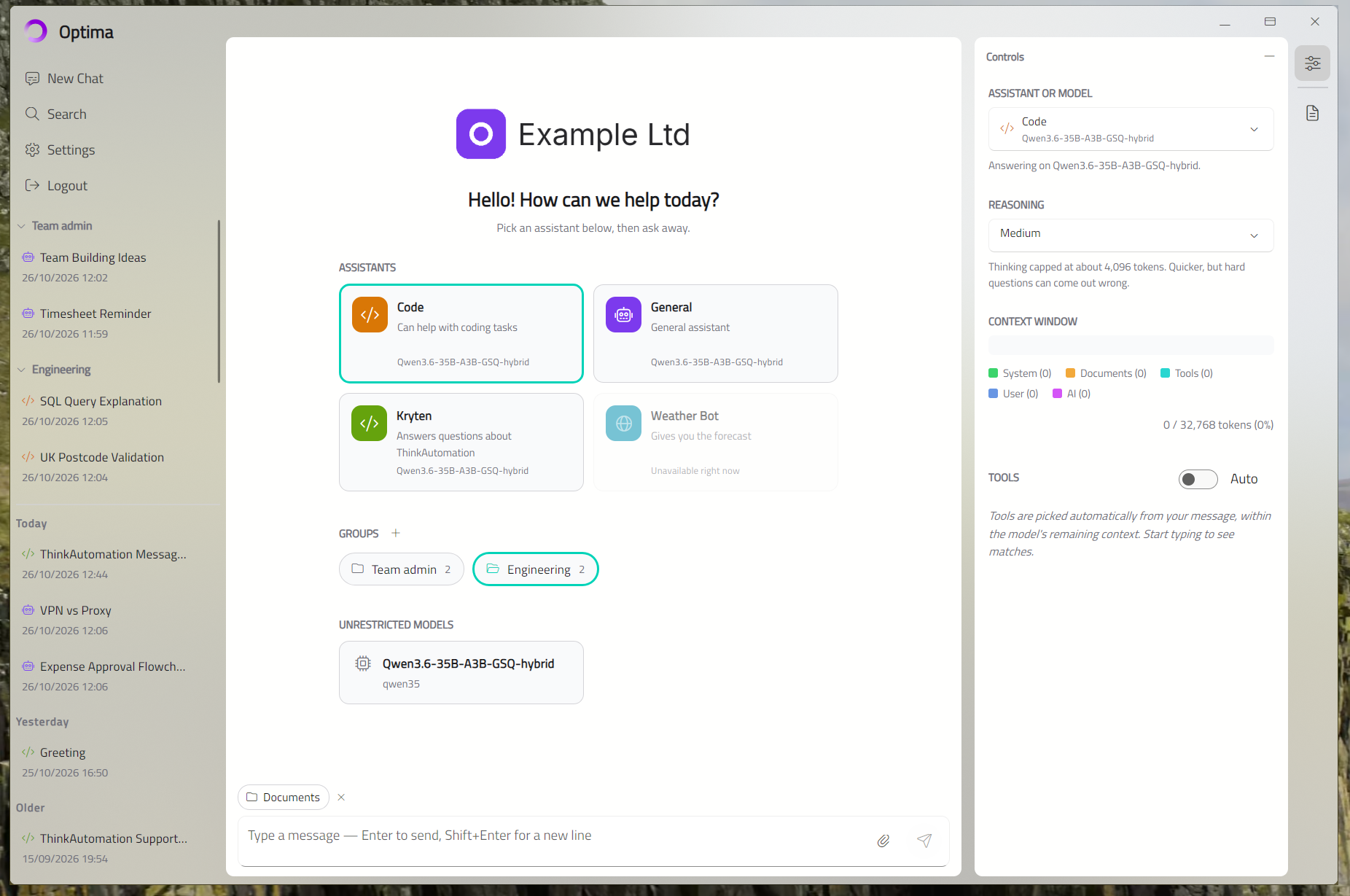
Assistants are set up by your administrator for particular jobs — for example, an HR helper that knows your policies, or a coding Assistant with access to particular tools. Each card shows the Assistant's name and what it is for.
Unrestricted models are the AI models themselves, with no particular instructions. They only appear if your administrator lets you use models directly.
Groups are your own folders for conversations. If you pick one before you send, the new chat will be filed there. See Managing Conversations.
Note
If an Assistant card says Unavailable right now, the AI model it relies on is not running. Try again shortly, or tell your administrator if it stays that way.
Starting A Conversation
- Click an Assistant or model card.
- Click in the message box at the bottom and type your message.
- Press Enter to send, or click the send button.
To start a new line without sending, press Shift+Enter. On a phone or tablet, the return key always starts a new line, so tap the send button to send.
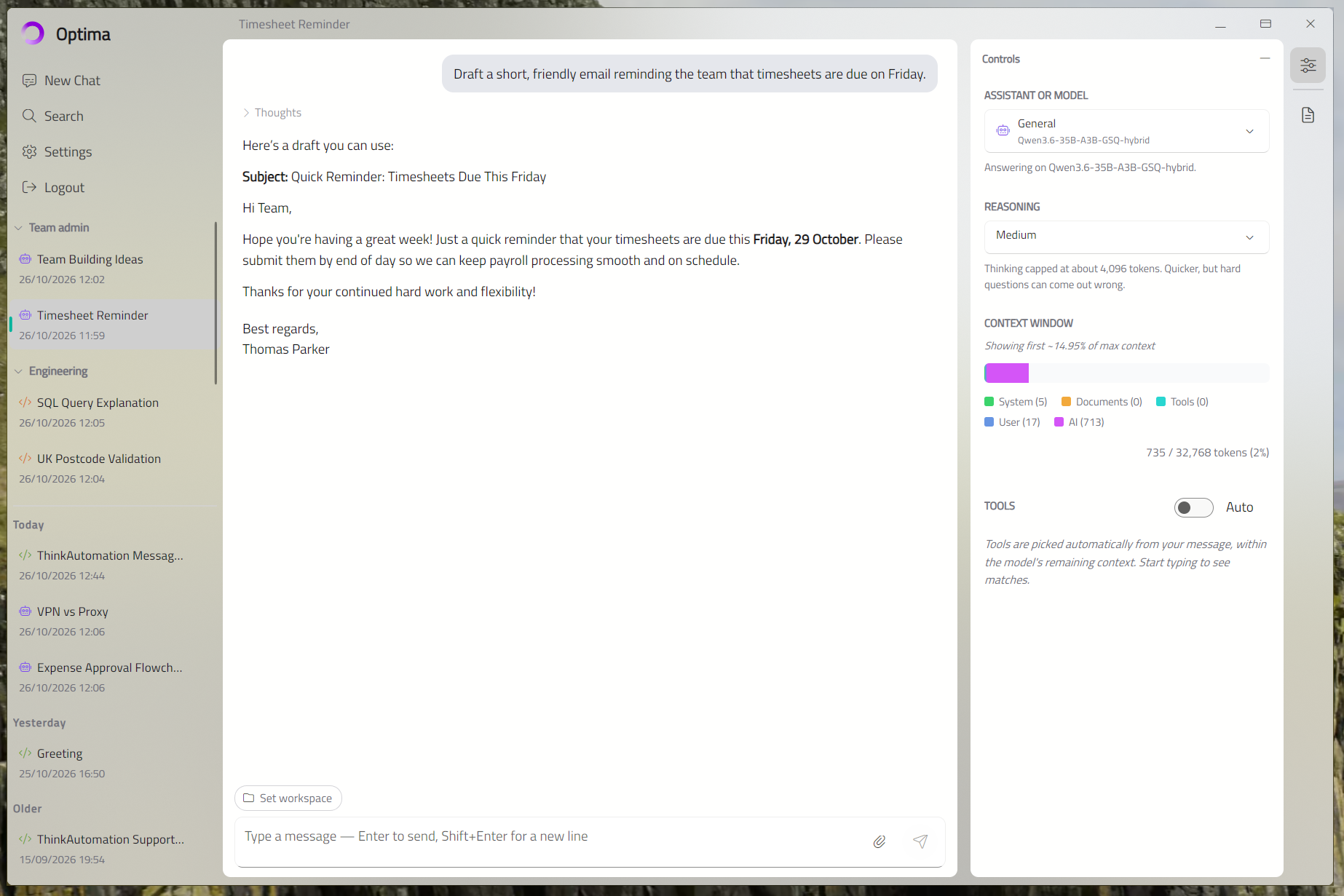
The answer will appear as it is written. The conversation will be saved automatically, and given a short title based on what you asked.
Stopping An Answer
While an answer is being written, the send button becomes a stop button. Click it, or press Esc, to stop. What has been written so far will be kept.
Carrying On The Conversation
Type your next message. The AI remembers the conversation so far, so you can refer back to earlier messages without repeating yourself.
A very long conversation can outgrow what the AI can hold at once. When that happens, the oldest messages will drop out of what it sees. See Context Window.
Changing Assistant Or Model Part-Way
You can usually switch a conversation to a different Assistant or model in the Controls card. See Controls Panel. The new one will see the conversation so far. Different Assistants and models can answer the same conversation quite differently.
Your administrator can turn this off. If they do, a conversation stays with whatever it started with, and you will need to start a new chat to use something else.
If you want a different topic, start a new chat. This gives the AI a clean slate, and keeps your conversations easier to find later.
Shortcuts For Choosing
You can use the keyboard to choose what to chat with:
| Keys | What they do |
|---|---|
| Ctrl+1 to Ctrl+9 (⌘1–⌘9 on a Mac) | Pick the first to ninth card on the welcome screen. In a conversation, start a new chat with that card |
| Alt+1 to Alt+9 (⌥1–⌥9 on a Mac) | Pick the first to ninth group on the welcome screen |
| Ctrl+K (⌘K on a Mac) | Open the quick picker: type to find any Assistant, model or group |
Hold down Ctrl (or ⌘) for a moment and each card will show its number.
Note
In a web browser, use Alt+1 to Alt+9 for cards — the browser keeps Ctrl+number for its own tabs — and use Ctrl+K to reach a group.