Gateway Overview
The Gateway is the central management point for your OnVeris installation. All administration happens here, and it is the only component your users need to reach. The Gateway holds your users, Assistants, Knowledge Bases and Connectors, and passes each request to a connected Node to be answered.
Logging In
Navigate to the Gateway's address in a browser. The login screen will be shown. Enter your username and password and click Login.
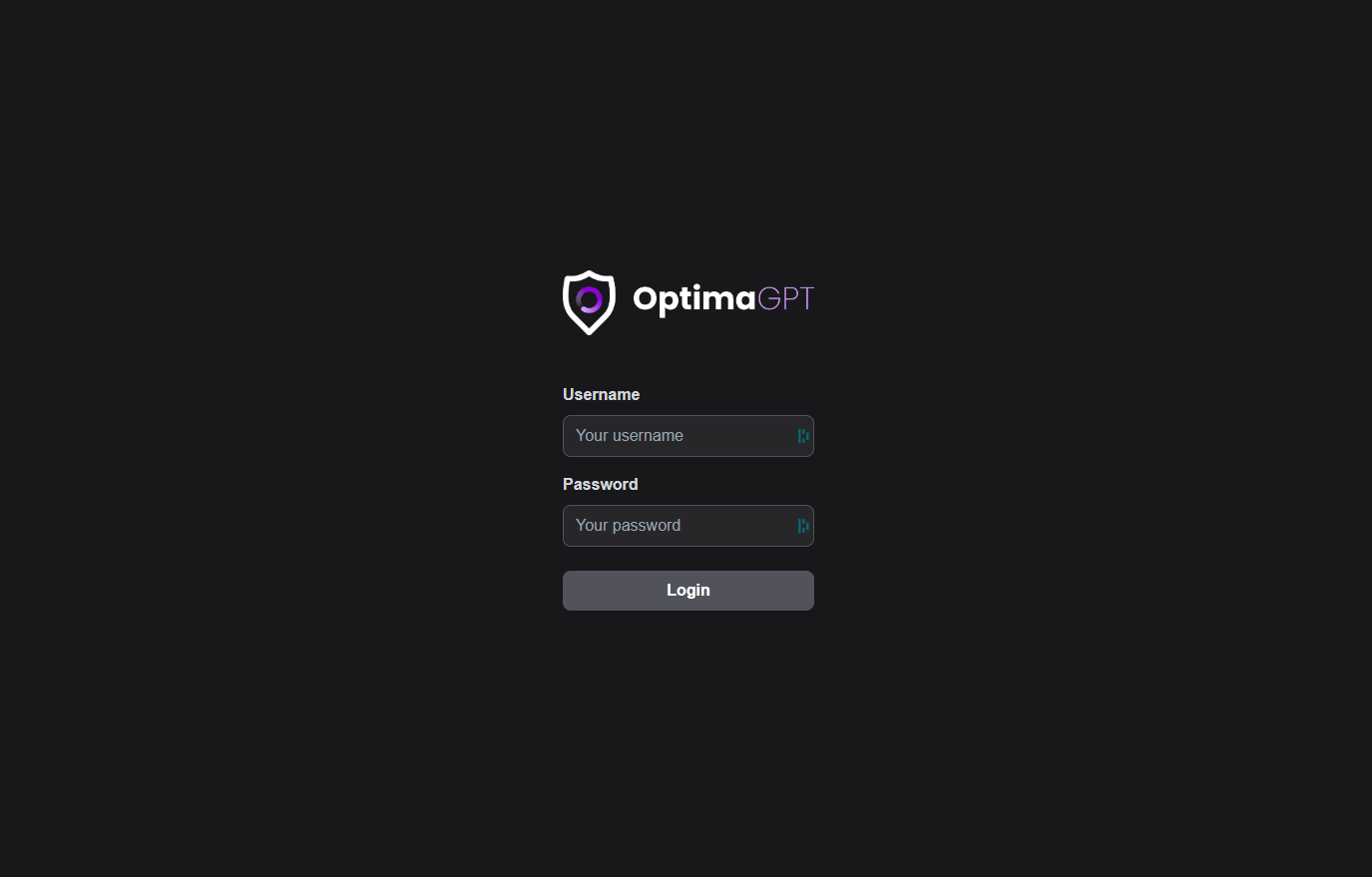
If your account is new, or your password has been reset, you will be asked to set a new password before you continue.
Where You Land
What you see after logging in depends on your account's permissions:
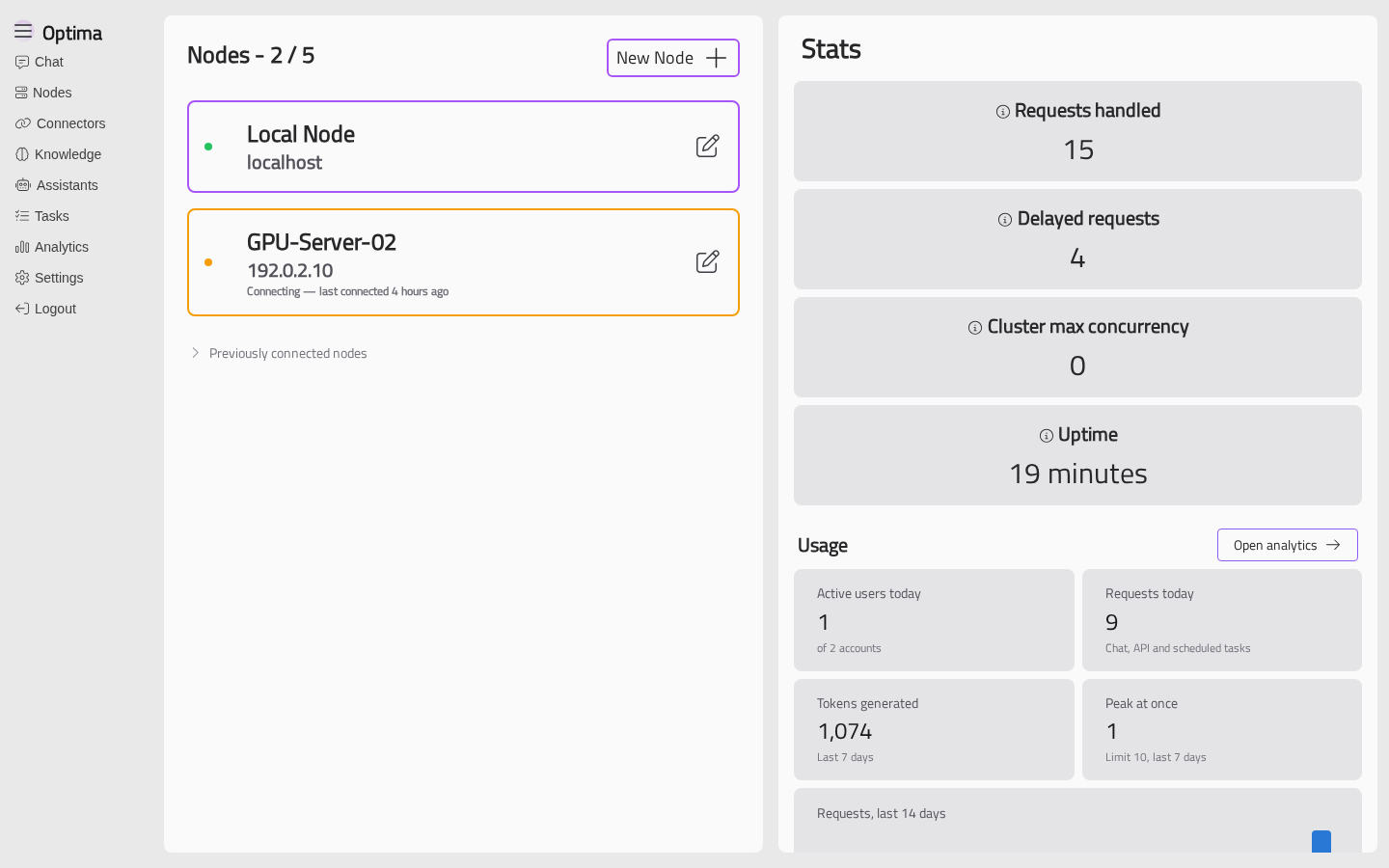
- Accounts with the Access Gateway permission will land on the Nodes page — the Gateway's home page.
- Accounts without it will go straight to OnVeris Chat. They never see the administration pages.
The Menu
The menu on the left lists the areas of the Gateway. Hover over the logo at the top and click to open or close it. Each item only appears if your account has the permission it needs.
| Item | What it does | Permission needed |
|---|---|---|
| Chat | Opens OnVeris Chat in the browser | Chat |
| Nodes | The home page — connected Nodes, their models, and Gateway statistics. See Managing Nodes | — |
| Connectors | OnVeris Connectors and MCP Connectors — tools the AI can use. See Connectors Overview | OnVeris Connectors or MCP Connectors |
| Knowledge | Collections of documents the AI can search. See Knowledge Bases | Knowledge Base or KB Admin |
| Assistants | Ready-made Assistants for your users. See Assistants | Assistants or Assistant Admin |
| Tasks | Prompts and jobs that run on a schedule. See Scheduled Tasks | Scheduled Tasks |
| Analytics | Who is using OnVeris, how much, and how well it is going. See Analytics | Analytics |
| My API keys | Your own API Keys. See API Keys | — |
| Connected accounts | Your own accounts in other systems, for MCP Connectors where each person signs in. Only shown when there is something to connect. See Signing In to MCP Connectors | — |
| Settings | Opens the Settings window. See Settings | — |
| Logout | Signs you out | — |
| Trace Window | Appears only while system tracing is on. See Diagnostics | — |
The Settings Window
Settings opens a window over the current page, with a menu down its left side. As with the main menu, you will only see the sections your permissions allow.
| Section | Contents | Permission needed |
|---|---|---|
| General | Licence summary, port, Nodes, limits for tools and Agents, analytics recording, developer options | Settings |
| AI | Built-in abilities such as AI memory, the date and time, web pages, MCP Connectors and Knowledge Base defaults | Settings |
| Assistants | Whether people may only use Assistants, and whether they can switch mid-conversation | Assistant Admin |
| Chat app | The greeting and logo on OnVeris Chat's welcome screen | Admin accounts only |
| Users | Create, edit and delete user accounts. See Users and Permissions | Users |
| Security | API Keys and certificates. See API Keys and Certificates and Security | Certificates |
| The mail server OnVeris uses to send passwords and resets | ||
| My Settings | Your own preferences: animations and theme | — |
Every section is described in Settings.
Licence Messages
If there is a problem with the Gateway's licence — it has expired, cannot be checked, or needs updating — a banner will appear across the top of every page, with a button to open the licence details. See Licensing.
When a newer version of the Gateway is available, a notification will tell you so.