Connectors Overview
A Connector gives the AI tools for working with another system — for example, looking up a contact in HubSpot, reading invoices in Xero, searching SharePoint, or reading files on your own computer. When a question needs one of those tools, the model will call it, OnVeris will run it, and the result will go back to the model to answer with.
Connectors let the AI act on your own systems as well as answer questions about them. You can install as many Connectors as you need, and decide which Assistants and people can use each one.
Connectors are managed on the Gateway's Connectors page.
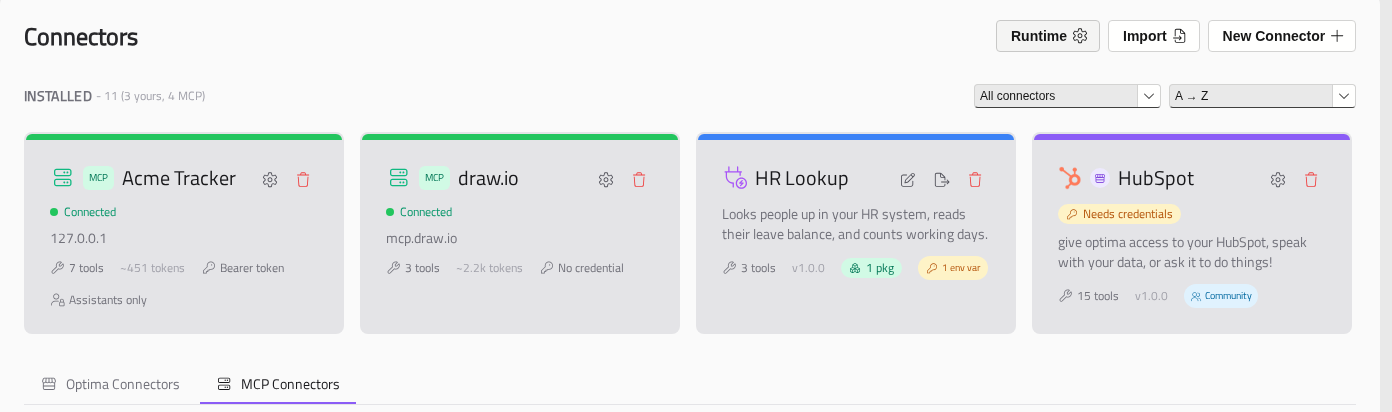
Two Kinds Of Connector
There are two kinds of Connector, which come from different places:
- OnVeris Connectors are tools written in Python for OnVeris and run by OnVeris. They come from the connector marketplace, from a
.oconfile you import, or from one you build yourself. - MCP Connectors are tools provided by an MCP server — a service, often run by another company, that speaks the Model Context Protocol. They come from the MCP directory, or you can add one by the server's address.
Both appear together under Installed on the Connectors page. OnVeris Connectors have a violet bar if they came from the marketplace, and a blue one if they were imported or built here. MCP Connectors have a green bar. When you have both kinds, you can use the All connectors list above the cards to show one kind only.
The two kinds are set up differently:
- OnVeris Connectors — see Installing a Connector. The Gateway needs its Python runtime first: see Setting Up the Gateway.
- MCP Connectors — see Adding an MCP Connector.
Where A Connector Runs
Most Connectors run on a server, so they work wherever people use OnVeris. Desktop Connectors run on each person's own computer instead, so that they can reach that person's files.
| Server Connectors | Desktop Connectors | |
|---|---|---|
| Runs on | The Gateway — or, for an MCP Connector, the server that provides it | The person's own computer, inside the OnVeris desktop app |
| Can reach | The other systems the Gateway can reach, such as HubSpot, Xero and Microsoft 365 | The person's files, folders and local tools |
| Works in | Desktop, web and mobile chat, the API and Scheduled Tasks | The desktop app only, once the person has installed the Connector runtime |
MCP Connectors are always Server Connectors. See Desktop Connectors.
How A Connector Signs In
Most Connectors need a credential for the system they work with. OnVeris Connectors are installed with their credentials blank. You add your own on the Connector's Credentials tab, where they will be stored encrypted on the Gateway.
| Sign-in | What you do | Examples |
|---|---|---|
| None | Nothing | Web Fetch, the Desktop Connectors |
| API key | Create a key or app at the other service and paste it in | HubSpot, Stripe, Trello |
| OAuth sign-in | Register an app at the other service, enter its client ID and secret, then click Connect and sign in | Xero, Outlook, SharePoint, Teams |
See API Key Connectors and OAuth Sign-in Connectors.
An OnVeris Connector's sign-in is shared: everyone who can use the Connector uses the same key or account. MCP Connectors can also let each person sign in with their own account. See Signing In to MCP Connectors.
Who Can Use A Connector
Without an Assistant, every installed OnVeris Connector is available to everyone who can chat. An MCP Connector with a shared credential is available only to the people on its access list. To decide precisely who gets what, you can give Connectors to Assistants. See Who Can Use Connectors.
Who Can Manage Connectors
Managing Connectors is controlled by the following permissions:
| Permission | What it allows |
|---|---|
| OnVeris Connectors | Install, create, edit, import, export and remove OnVeris Connectors, switch them on and off, and set their credentials |
| Connector Dependencies | Approve installing the Python packages Connectors declare |
| MCP Connectors | Add, change and remove MCP Connectors, and choose who can use them |
| Assistant Admin | Give OnVeris Connectors to Assistants. MCP Connectors is enough to give an MCP Connector to an Assistant you can edit |
The Connectors page is in the menu for anyone with OnVeris Connectors or MCP Connectors. See Users and Permissions.
What Is Available
The Connector Catalogue lists every Connector currently on the marketplace, with a setup guide for each.